
Dell Pro Max
From Text to Audio: Transform PDFs to Podcasts
Turn dense PDFs into podcasts in minutes using Dell Pro Max workstations and NVIDIA RTX PRO GPUs—your new way to “read” on the go.
Key takeaways: PDF to Podcast transforms heavy documents into natural, conversational audio using NVIDIA AI Blueprints—running best on Dell Pro Max workstations powered by NVIDIA RTX PRO GPUs. Clone the project, configure NVIDIA AI Workbench, upload your PDFs, and generate binge‑worthy audio summaries fast.
You know that PDF? That 32-page ‘Q3 Strategy Realignment’ PDF has been mocking you from the Downloads folder all week.
Now imagine pressing play and listening to the key points while you stroll to your next meeting. No frantic scrolling, no midnight skimming. Just clear, conversational audio; absorb dense content on your schedule.
That is exactly what PDF to Podcast delivers. Built on NVIDIA’s open-source PDF to Podcast Blueprint and accelerated on Dell Pro Max workstations equipped with NVIDIA RTX PRO GPUs, the solution does more than recite a document. It understands structure, extracts what matters, and turns static text into an engaging podcast-style experience.
Ready to turn any bloated PDF into a commute-friendly podcast? Here’s what you’ll need and how to spin it up in minutes.
Why PDFs wear us out
PDFs were designed for printers, not for mobile workers or fast-moving teams. They’re dense, clunky, and hard to navigate. You open one, get overwhelmed by the layout, and tell yourself you’ll come back later—but you never do.
The World Bank found that a third of their reports were never downloaded. If global policy research gets ignored, what chance does your quarterly market analysis have?
PDF to Podcast solves the format problem by turning flat files into human-sounding, conversational audio. With the NVIDIA AI Blueprint powering extraction and generation and RTX PRO GPUs inside Dell Pro Max workstations accelerating local inference, you get:
-
- Natural pacing and tone
- Clear structure and flow
- Realistic, human‑like voices through ElevenLabs
It feels less like software and more like a colleague walking you through the highlights.
Hardware requirements
Determine your hardware needs based on your deployment path:
| Deployment | Where it Runs | Minimum Specs |
|---|---|---|
| Local | NVIDIA AI Workbench | Ubuntu 20.04/22.04, Docker Engine & Compose, NVIDIA AI Workbench, Git |
| Local | Your workstation or on-prem server | Ubuntu 20.04/22.04, Docker Engine & Compose, NVIDIA Container Toolkit, Git |
| Cloud (Default) | NVIDIA NIM microservices via build.nvidia.com | 8 CPU cores, 64 GB RAM, 100GB disk space, public IP |
This guide walks you through the local set up using NVIDIA AI Workbench. For a guide on Local set up without Workbench refer to the GitHub Repo.
What you need before you start
-
- NVIDIA AI Workbench – A development environment that handles builds and dependencies. Download it here.
- During installation, Workbench will Install Docker Desktop or Podman.
- On Windows systems, it will also install WSL (Windows Subsystem for Linux).
- Docker Desktop or Podman – Installed by NVIDIA AI Workbench.
- ElevenLabs API key – To use ElevenLabs’ conversational voice agents.
- NVIDIA API key -To use NVIDIA’s API catalog.
- PDFs you want to convert.
- NVIDIA AI Workbench – A development environment that handles builds and dependencies. Download it here.
Step-by-step: Clone to podcast
1. Install and Launch NVIDIA AI Workbench
Download and install NVIDIA AI Workbench, then fire it up. You will use it to clone the project and manage the container lifecycle.
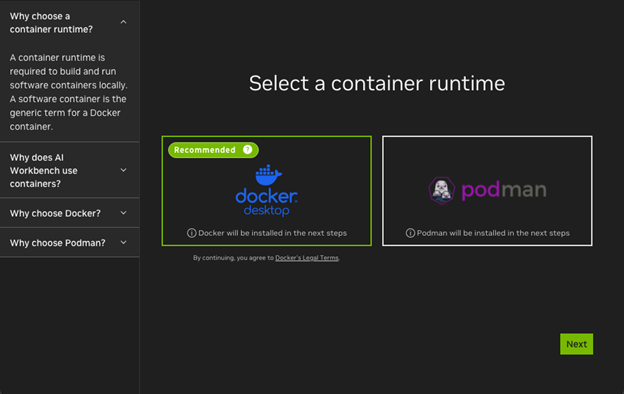
Note: If you don’t have a container runtime installed, you will be prompted to install either Docker Desktop or Podman. This guide uses Docker Desktop. Make your selection and click “Next.”
2. Select a local location
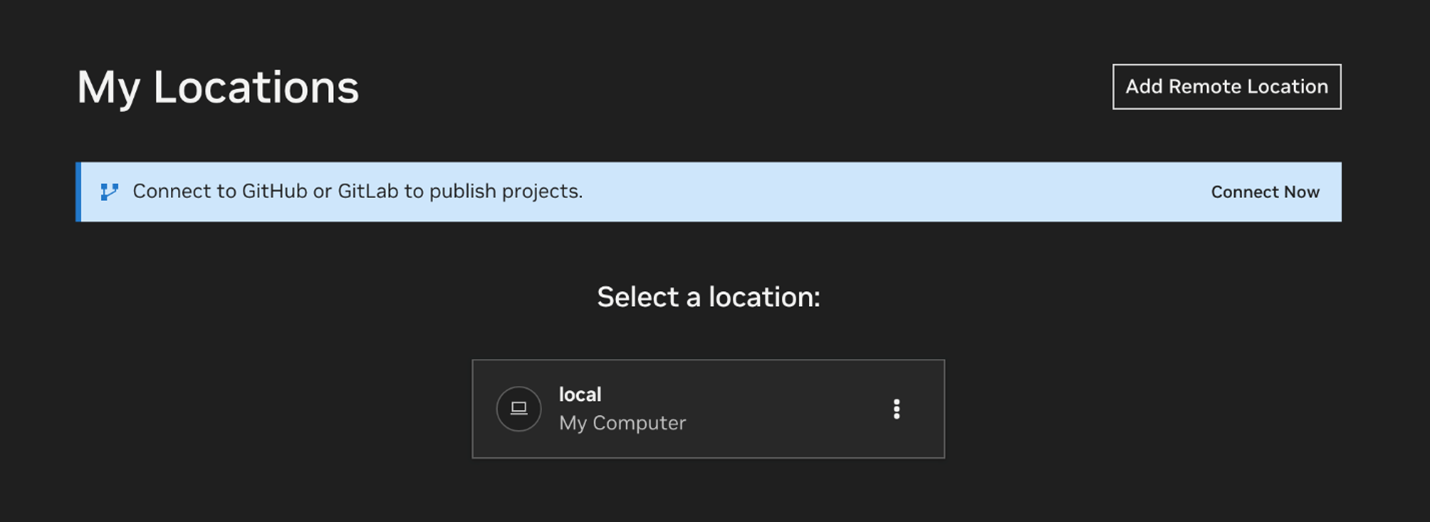
Open NVIDIA AI Workbench and select a local location.
3. Clone the PDF-to-Podcast Project
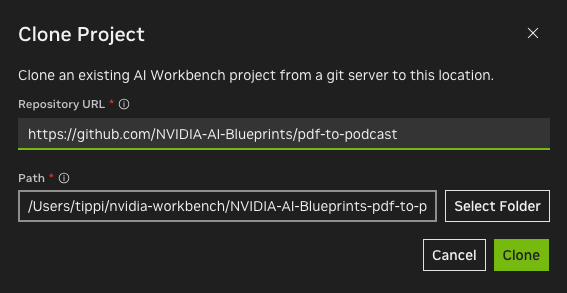
In NVIDIA AI Workbench local home screen, click “Clone Project.”

Paste in the Repository URL: https://github.com/NVIDIA-AI-Blueprints/pdf-to-podcast
Accept the default local path or select your own, then hit “Clone.”
4. Configure the Workbench Environment
Workbench spins up a project dashboard to build your podcast. The following steps will guide you through the environment configuration.
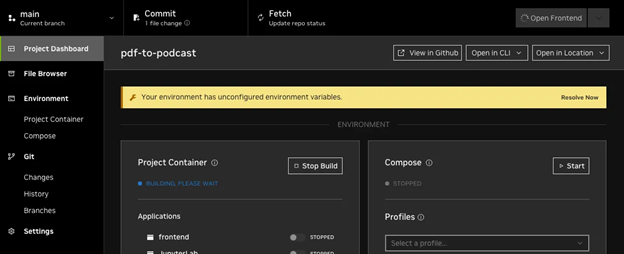
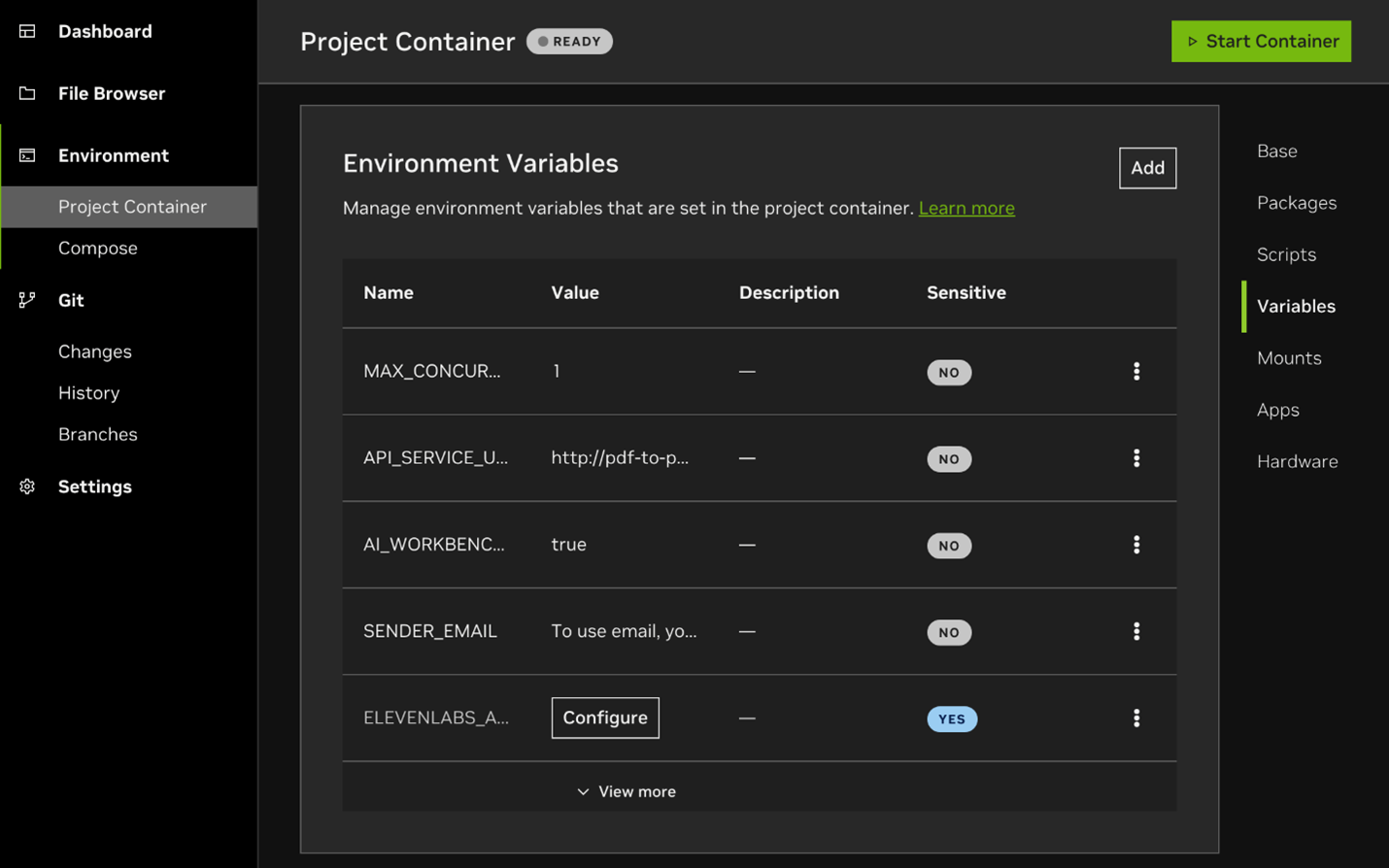
You can click “Resolve Now” in the yellow banner and enter your API keys. Or you can configure your variables by clicking on “Project Container” in the left menu. Scroll down until you find the “Environment Variables” section.
5. Enable Local GPU use
To run PDF to Podcast locally you will need to make a change to the docker-compose.yaml file. These changes will allow the LLM and Speech-to-text model to share a single GPU.
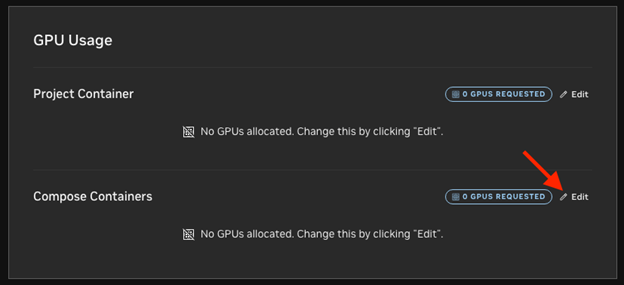
From the NVIDIA Workbench Dashboard, locate the GPU Usage section. Click the “Edit” button on the right of Compose Containers. This will open a pop-up window where you can edit docker-compose.yaml.
-
- You will edit local-nim and tts-service.
- The first is local-nim. You need to change count: 1 to device_id: [“0”]. This section should look like this now.
- You will edit local-nim and tts-service.
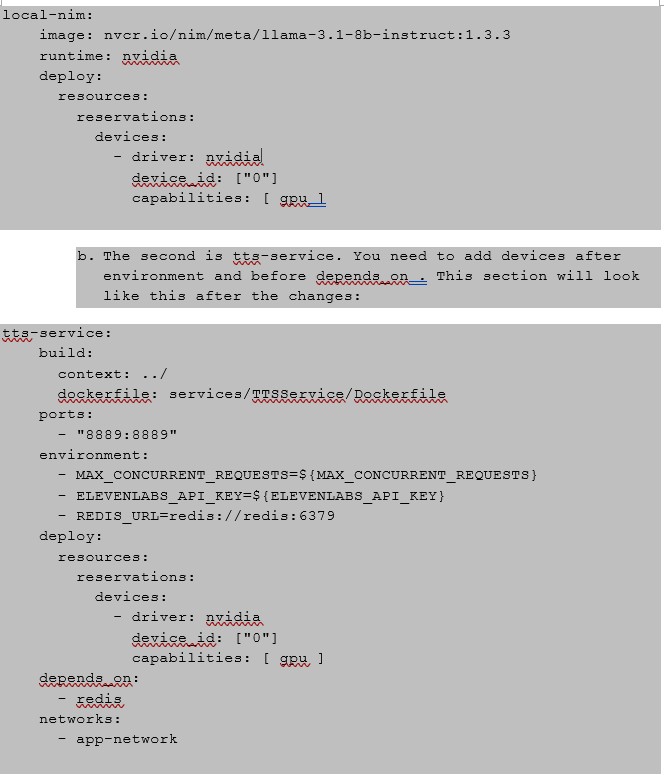
2. Click “Save” to apply these changes.
6. Start Compose
The PDF to Podcast project is ready to run. We will start the Docker Compose backend.
-
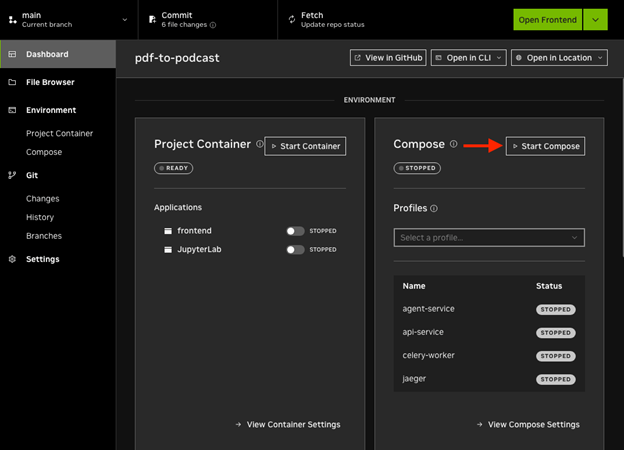
- On the Dashboard, click “Start Compose” in the Compose section. The Start button will change to “Loading.” Starting Compose can take some time—now might be a good time to stretch or get some coffee!
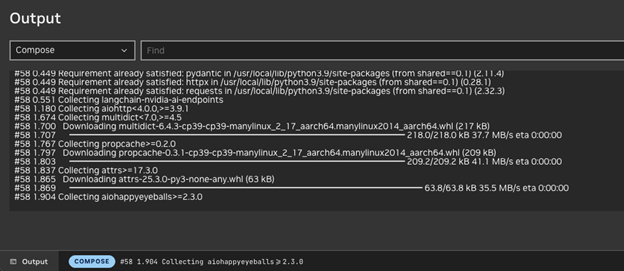
2. If you want to see the output, click the bottom bar to view the Compose Output.
3. Once Compose is running, you can start the Project container
7. Start Project
With the backend running, we will start the Project container.
-
- On the Dashboard, click “Start Container” in the Project Container section. This won’t take as long as Compose. When the project started it should have automatically started building the containers.
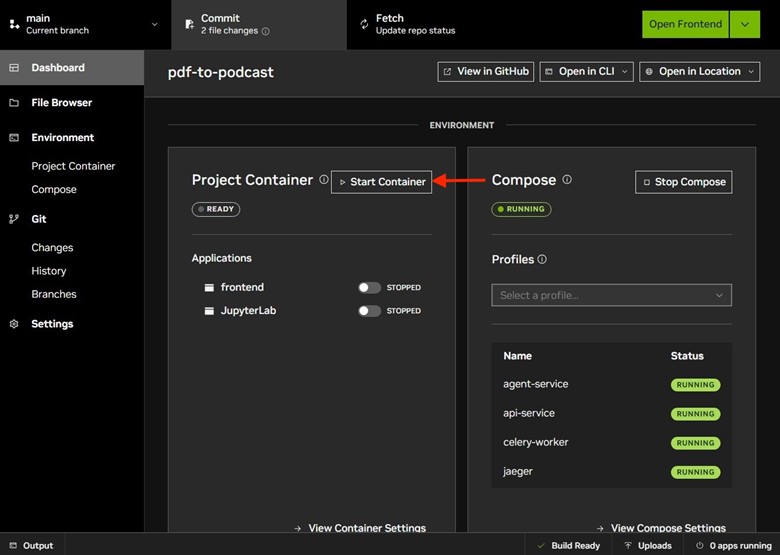
2. With the containers running you can now click “Open Frontend” in the upper righthand corner of the Workbench. Or toggle the button next to “” This opens a browser interface.
8. Front-End UI
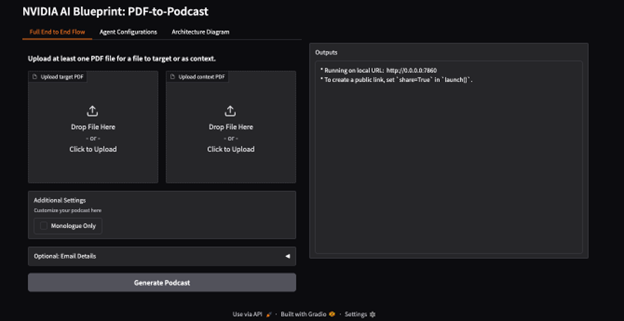
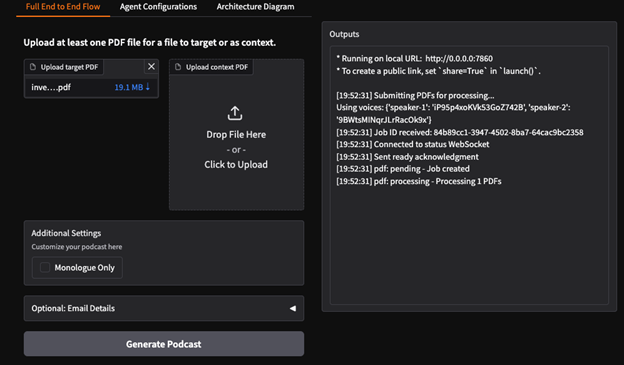
When the front-end loads in your browser, you’ll see real-time updates on the right under the Outputs panel. This is where the system logs its progress as it moves through each stage. If anything goes wrong, errors will print here.
On the left, there are three important tabs that control how your podcast is generated.
-
- Full End-to-End Flow – This is where you will upload your PDF and any additional content for the podcast.
- Agent Configurations – If you want to add some configurations to the agent. This is also where you can verify the agent configuration is using local inference models. The interface allows configuration of model parameters and processing settings.
- Architecture Diagram – A quick view of the PDF-to-Podcast architecture and key features.
9. Upload, Configure, Convert
-
- Under “Full End to End Flow”, upload the primary (“target”) PDF and any context documents.
- Adding context documents will give the AI more context and will help produce a full podcast experience.
- Under “Additional Settings” if you want a single voice, you can check the box for “Monologue Only.” Otherwise, a two-person style podcast will be used.
- Click “Generate Podcast”
- Under “Full End to End Flow”, upload the primary (“target”) PDF and any context documents.
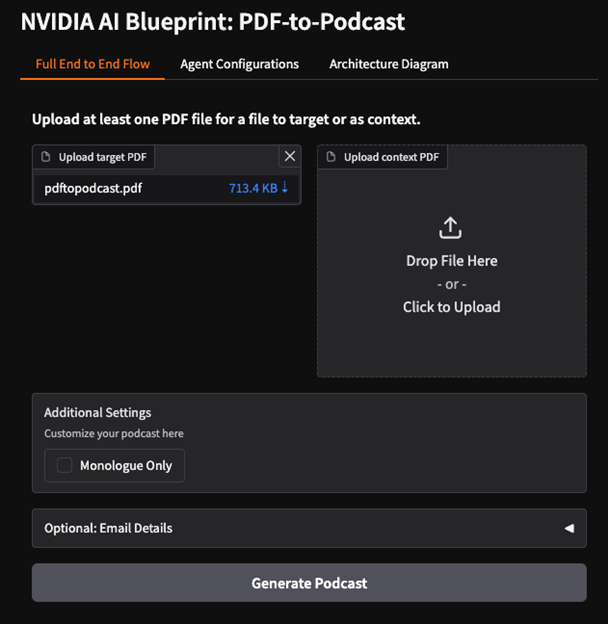
4. The UI will display the outputs on the right. It will display its progress as it goes through document ingestion, parsing, generating an outline, content structuring, dialogue creation, and audio synthesis.
If there are any errors, you will see them displayed in outputs. It will take some time to generate the podcast, so this is another good time to step away and let it do its thing.
10. Access and Use Your Generated Podcast
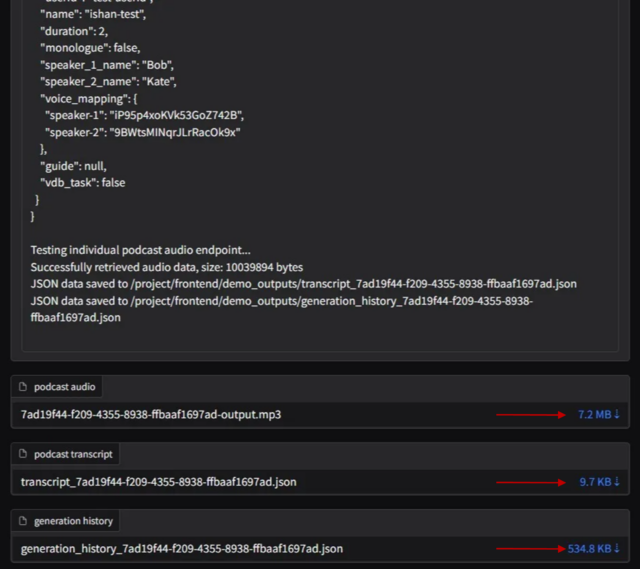
You can download the podcast audio, transcript, and generation history by clicking the blue file size text on the right below the frontend outputs after processing completes.
-
-
- Podcast Audio: An MP3 of the podcast
- Podcast Transcript: A JSON Transcript
- Generation History: A JSON generation log
-
Listen instead of skim
Next time a 50‑page report lands in your inbox? Don’t skim, listen. With NVIDIA’s PDF to Podcast Blueprint running on a workstation and professional GPUs, dense documents turn into high‑quality audio you can consume without sacrificing time or focus.
Meetings, commutes, workflows, your reading list now fits your life.
Learn more & get started
Want to accelerate your AI workflows with hardware built for NVIDIA‑powered creation? Explore Dell’s portfolio of Pro Max workstations designed for AI development, local LLM inference, and high‑performance content generation—click here.